
How to label products for FBA: a complete UK seller's guide
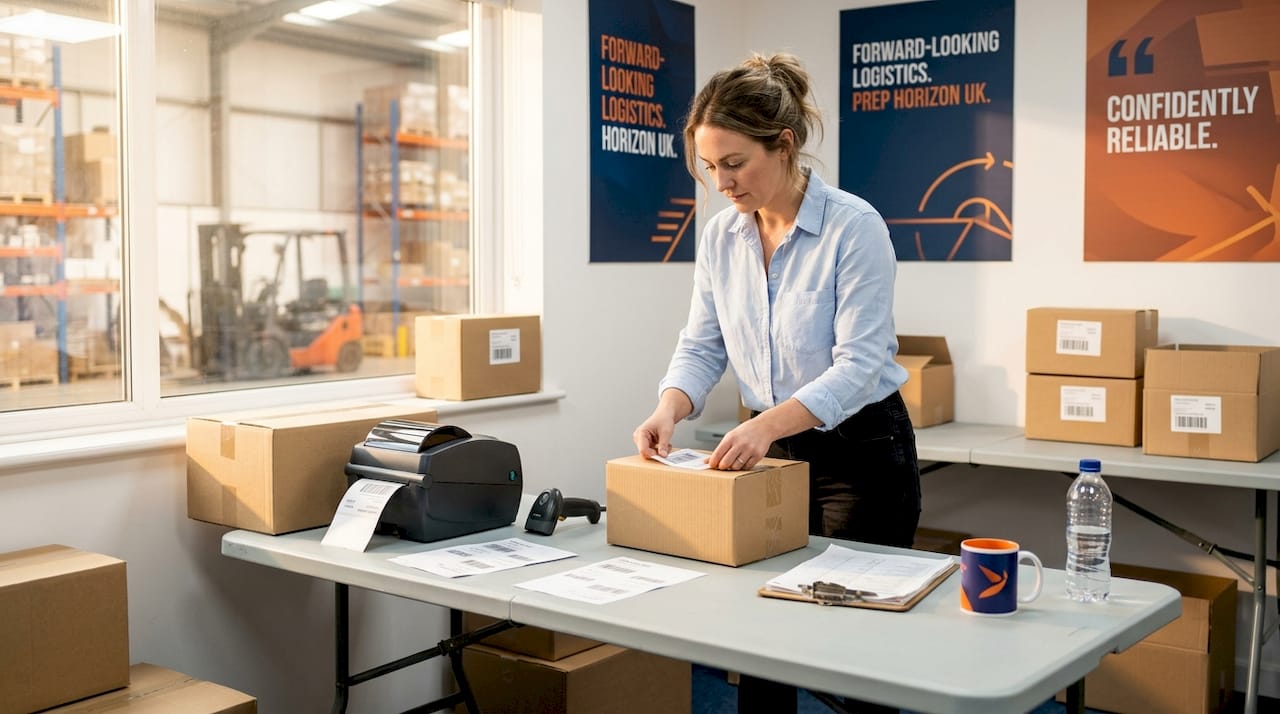
Sending inventory to an Amazon fulfilment centre with incorrect labels is not just a minor inconvenience. It can mean your stock sits in a holding queue for days, Amazon charges you a relabelling fee, or worse, your shipment gets refused entirely during a peak sales period. For UK sellers navigating the required FBA labels system, understanding exactly what Amazon expects, before your boxes leave the door, is the difference between smooth, profitable restocking and a string of costly surprises. This guide walks you through every stage of the labelling process so your next shipment arrives correctly and gets received without a hitch.
Table of Contents
Key Takeaways
Point | Details |
Label both units and boxes | Always apply FNSKU to each sellable unit and FBA box ID labels to each carton for seamless intake by Amazon. |
Cover conflicting barcodes | Ensure only one barcode is visible per item by fully covering or removing others to avoid Amazon scanning errors. |
Prioritise barcode print quality | Print labels at 300 DPI, check scannability, and attach to a flat, visible area for fast fulfilment centre processing. |
Verify before sending | Establish a routine SOP to catch and correct labelling errors before products reach Amazon, saving costly rework and delays. |
What you need before you start labelling
With the consequences of errors understood, let’s clarify exactly what you need in place before you create a single label. Rushing into printing before you have the right setup wastes time, label stock, and in some cases your entire prep session.
Information you need to hand
Before logging into Seller Central, make sure you have the following confirmed for the shipment:
Product SKUs and ASINs for every unit in the batch
FNSKU codes generated in your inventory settings (one per ASIN per condition)
Quantities per SKU, cross-checked against your physical stock count
Shipment plan details, including the destination fulfilment centre assigned by Amazon
Box contents per carton, including unit counts and weight
Getting this data right upfront prevents duplicate labels, mismatches between the shipment plan and what Amazon receives, and those maddening discrepancies that flag your account for investigation.
Equipment checklist
Item | Specification |
Label printer | Thermal direct or laser, not inkjet |
Label paper | 30-up A4 sheets or Zebra thermal rolls |
Barcodes to print | FNSKU unit labels and FBA box ID labels |
Barcode scanner | Handheld USB or Bluetooth for verification |
Software/access | Amazon Seller Central, compatible browser |
A thermal printer is worth the investment if you are sending stock regularly. Inkjet labels can smudge during transit, which leads to scanning failures at the fulfilment centre. According to Amazon FBA box label requirements, Amazon requires a minimum 300 DPI print quality with high-contrast, fully scannable barcodes applied to a clean, flat surface area.
Understanding FNSKU vs box ID labels
There are two distinct label types you will deal with on every shipment. The FNSKU label is a unit-level identifier, going on each individual product. It tells Amazon exactly which seller’s inventory a product belongs to, which is critical for commingled warehouse environments. The FBA box ID label is a shipment-level identifier, applied to the outside of each carton, linking that box to your specific inbound shipment plan.
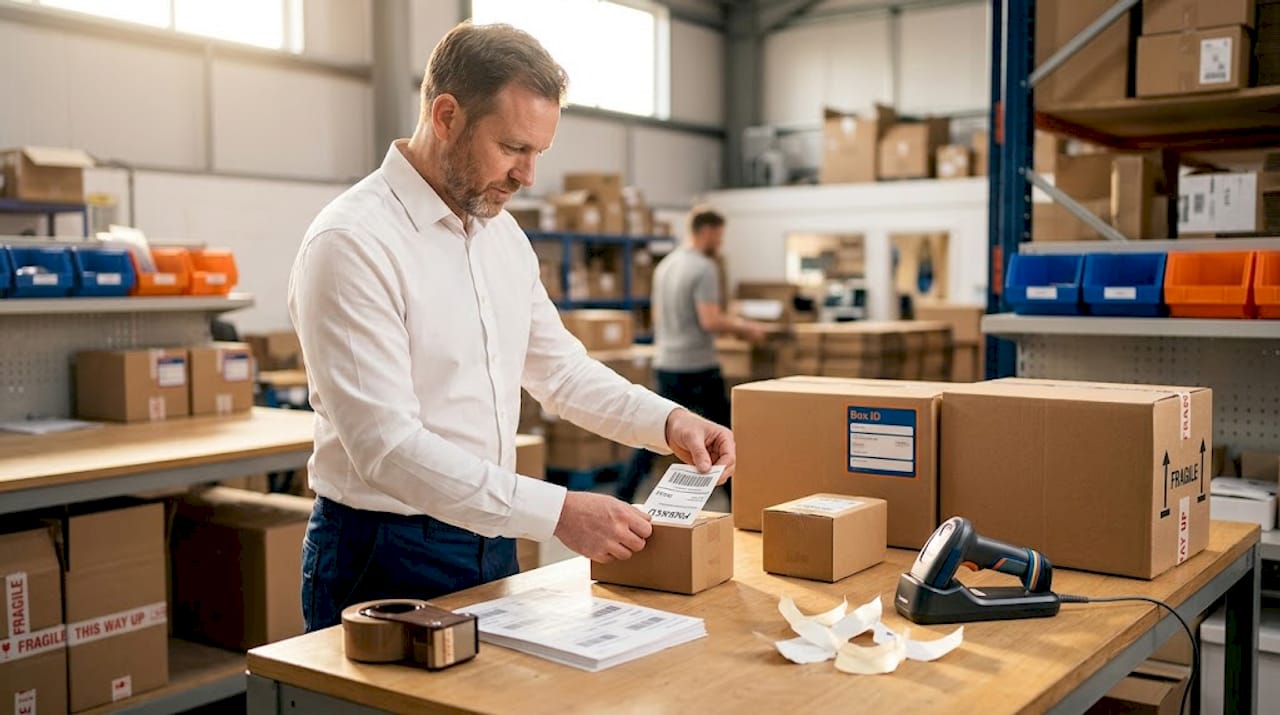
The labeling requirements explained in detail show how these two label types work together. Miss one layer and the whole shipment becomes harder to process.
As part of the Send/Replenish Inventory flow, you generate both label types directly in Seller Central, then print them at the correct size and scale so the barcodes stay scannable. This workflow is non-negotiable.
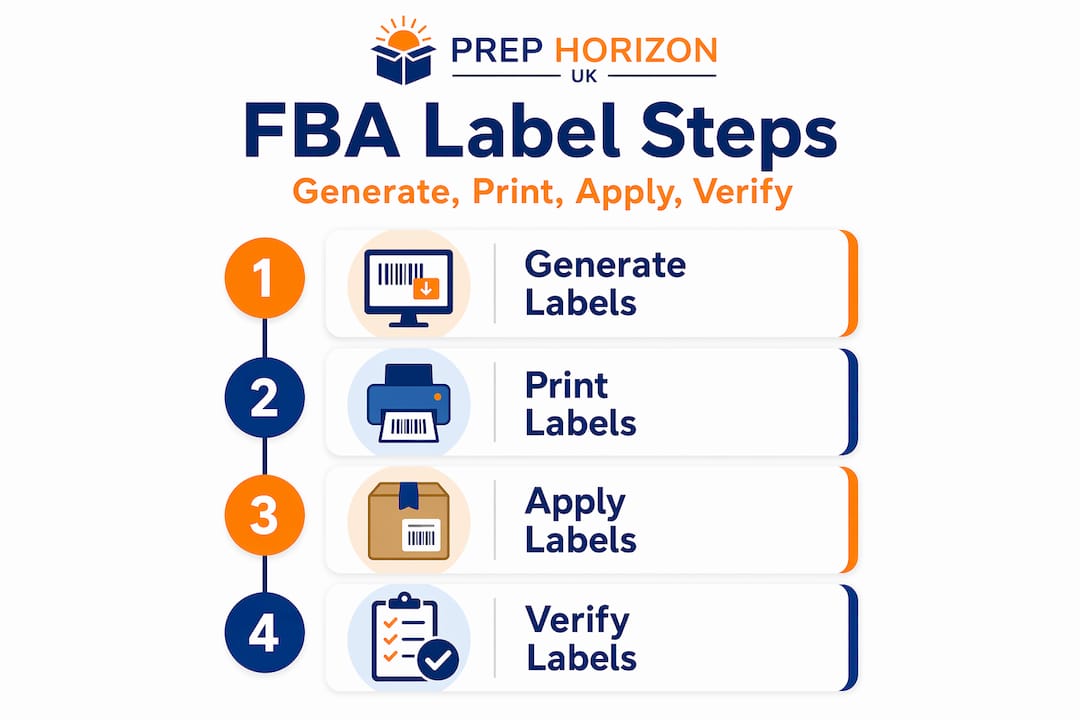
Pro Tip: Print one sheet of FNSKU labels and scan each barcode with your handheld scanner before running your full label batch. A single misprint or scale error discovered early saves you reprinting hundreds of labels.
Step-by-step: How to generate and print FBA labels
Now that you have your materials and framework in place, follow this practical process to generate and print compliant FBA labels.
Generating FNSKU labels in Seller Central
Go to Inventory > Manage Inventory in Seller Central
Select the product and choose Print item labels from the action menu
Set the number of labels to match your unit count precisely
Choose your label type (30-up, Zebra ZPL, etc.) matching your printer format
Download the PDF and open it in Adobe Acrobat or a compatible reader
Generating FBA box ID labels
For inbound shipments to FBA, you print carton labels from within the Send to Amazon workflow and apply them to each outside carton surface. These are generated at Step 3 of the workflow, once you have confirmed box contents and quantities.
Complete Step 1: Set quantities in the Send to Amazon workflow
Complete Step 2: Confirm prep and labelling requirements
At Step 3, click Print box labels and download the file
Print one label per carton and set aside until packing is complete
Critical print settings
Setting | Correct value | Common error |
Scale | 100% (actual size) | Scaled to fit page |
DPI | 300 minimum | Draft/economy mode |
Colour | Black on white, high contrast | Grey or faded output |
Format | PDF via Acrobat | Browser print (distorts scale) |
Warning: Never resize or rescale barcode labels. Stretching or compressing a barcode, even slightly, makes it unreadable by Amazon’s scanners. Always print at 100% actual size through a PDF reader, not directly from a browser window.
The correct labelling workflow confirms that labels generated in the Send/Replenish Inventory flow and printed to the correct size and scale remain scannable and compliant at the fulfilment centre.
Pro Tip: After printing your first sheet, scan every barcode with your handheld scanner. If any fail to scan immediately, diagnose whether it’s a printer calibration issue, a DPI setting problem, or a label stock issue before printing the entire batch.
Applying FNSKU and box labels: Best practices and compliance
With your labels printed, the focus now shifts to applying them properly so they are accepted instantly at Amazon’s fulfilment centre. Physical placement matters just as much as print quality.
Applying FNSKU labels to individual units
Hold each unit with the label area facing you
Identify the existing manufacturer barcode (UPC, EAN, ISBN, or GTIN)
Place the FNSKU label directly over the manufacturer barcode so it is fully covered and no corners remain visible
Press firmly from the centre outward to eliminate air bubbles
Confirm the FNSKU label lies completely flat and is not wrinkled
Why covering manufacturer barcodes matters. If you use FNSKU, you must cover conflicting barcodes so only one scannable identifier is visible to Amazon. This is mandatory unless you are enrolled in Amazon’s Brand Registry and using the manufacturer barcode tracking option. Leaving two scannable barcodes on a product causes scanning conflicts at the fulfilment centre, resulting in inventory being flagged and held.
Box ID label placement
Box ID labels go on a flat, clean area of the carton exterior. Apply them to the largest flat face if possible, away from seams, tape lines, and corners. If your cartons are tall enough to require two orientations during transport, apply the label to the top face as a priority.
Items to double-check after labelling each carton:
Box ID label is fully adhered with no peeling edges
Label is not placed on a seam, taped join, or bent surface
Barcode is not partially obscured by another label or print marking on the box
Label matches the correct box number in your shipment plan
No existing carrier or supplier labels remain visible that could confuse scanning
The barcode compliance guide goes into specific detail about acceptable label placement zones and surface conditions. Amazon requires correct placement on a flat area with no obstructions, meaning curved surfaces, corner seams, and reinforced tape areas are all off-limits.
Statistic callout: Covering manufacturer barcodes is not optional. For any seller not using Brand Registry’s manufacturer barcode programme, placing an FNSKU over existing barcodes is a mandatory compliance requirement, and failure to do so is one of the most common reasons Amazon relabels inventory at the seller’s expense.
A useful reference before your shipments go out is the shipment inspection checklist, which walks through the exact points Amazon checks when receiving your boxes.
Verification, troubleshooting and avoiding costly mistakes
Proper application is half the battle. The real win is verifying before dispatch so your FBA shipments pass inspection every time.
Building a verification SOP
An SOP, or standard operating procedure, is simply a written checklist you follow the same way every time. It sounds obvious, but the sellers who treat labelling as a one-person, best-effort task are the ones paying Amazon’s relabelling fees repeatedly. The FBA prep guide outlines how to structure these steps for different product categories.
Think of your labelling process as two distinct layers. Layer one is the unit-level identifier: FNSKU on each sellable unit. Layer two is the shipment-level identifier: FBA box ID labels on each carton. Both layers must be verified before the shipment leaves.
Your final shipment verification checklist
Count units in each box and confirm they match the quantities entered in Seller Central
Scan every FNSKU label with your handheld scanner to confirm all read correctly
Check barcode coverage: confirm manufacturer barcodes are fully hidden and no additional barcodes are exposed
Inspect label condition: look for any peeling, creasing, or moisture damage that would affect scanning
Confirm box ID labels are applied flat and match the correct shipment plan box number
Photograph each carton before sealing, both contents and exterior label, as a record
Most common labelling mistakes and how to fix them
Wrong scale when printing: fix by always printing via Adobe Acrobat at 100% actual size, never from a browser
Inkjet smudging in transit: switch to a thermal printer or use laser on coated paper
FNSKU covers own barcode only partially: ensure the entire manufacturer barcode, including quiet zones on each side, is fully covered
Box ID label on a seam: reprint and reapply to a flat carton face
Labels applied upside-down: while scanners can often read rotated barcodes, apply consistently to avoid edge cases during high-speed automated processing
The incorrect/missing labels issue is one of the most documented sources of receiving delays and rework costs, which is precisely why experienced sellers test-scan labels before batch printing and build a verification step into every prep workflow.
Pro Tip: Keep one sample sheet from every label batch, with the date, product, and shipment reference written on the back. If Amazon ever questions a shipment, this sheet is your physical evidence that labels were correct when they left your facility.
The overlooked truth about FBA labelling: Why the small details mean big savings
Here is something most articles on FBA labelling won’t say outright: getting labels right is not just about avoiding fees. It is a direct lever on your profitability and your restock speed.
We have seen two distinct types of sellers come through prep operations. The first type treats labelling as a chore, rushing through it and assuming Amazon will sort out any minor issues. The second type builds a step-by-step process, checks it, and rarely thinks about labelling again because it simply works. The gap between those two sellers, in actual pounds and pence, is significant over a trading year.
Amazon’s relabelling and rework costs are charged per unit. On a 500-unit shipment where 10% of products have scanning issues, you are looking at 50 units relabelled at Amazon’s rate, plus the receiving delay that could mean a week or more of lost sales velocity during peak periods. That is not a compliance problem. That is a cash-flow problem.
The mindset shift we encourage is simple: treat labelling as a profit protection activity, not a box-ticking exercise. When your labels are correct the first time, your inventory is received faster, your product listing goes live sooner, and your restocking cycle stays on track. Every shortcut you take at the labelling stage costs you two to three times as much to fix on the other side of the process.
Sellers who use a dedicated FNSKU labelling service often report that the cost is easily justified by the time saved, the errors eliminated, and the confidence that every shipment goes out correctly. That confidence is worth more than most sellers initially expect.
Make labelling the easiest part of FBA
Labelling is one of those tasks that feels straightforward until you are managing multiple SKUs, varying quantities, and tight dispatch windows all at once.

At Prep Horizon UK, we handle the full process for Amazon sellers across the UK, from receiving your stock to applying FNSKU labels, attaching box ID labels, and building your shipment in Seller Central. Every unit is checked, every barcode verified, and every carton sealed correctly before it leaves our facility. If you want to understand how to prepare inventory procedures properly before working with a prep centre, our resources cover that in detail. For sellers who want to stop worrying about label compliance and start focusing on sourcing and sales, handing off your prep to a trusted specialist is one of the most effective decisions you can make.
Frequently asked questions
Do all products for FBA need an FNSKU label?
Yes, unless you are enrolled in Brand Registry and have set up manufacturer barcode tracking. Otherwise, FNSKU is mandatory for FBA shipment acceptance, and you must cover manufacturer barcodes so only one identifier is scannable.
How do I print FBA box ID labels from Seller Central?
You generate and download FBA box ID labels in Step 3 of the Send to Amazon workflow. As confirmed in the Amazon Seller Central forum, you then print and apply them to each outside carton surface so they remain clearly visible.
What barcode print quality does Amazon require for FBA labels?
Labels should be printed at a minimum of 300 DPI, high-contrast and crisp, with no smudges, fading, or distortion to guarantee reliable scanning at the fulfilment centre.
What happens if I use the wrong barcode or miss a label?
Amazon may reject, hold, or relabel your inventory for an additional fee. As documented in FBA labeling guidance, incorrect or missing labels are a leading cause of receiving delays and unplanned rework costs for sellers.
Recommended
Comments